> ## Documentation Index
> Fetch the complete documentation index at: https://docs.lighton.ai/llms.txt
> Use this file to discover all available pages before exploring further.
# Documents and Workspaces
> Learn how to view, manage, upload, and organize documents within workspaces in Paradigm.
## Overview
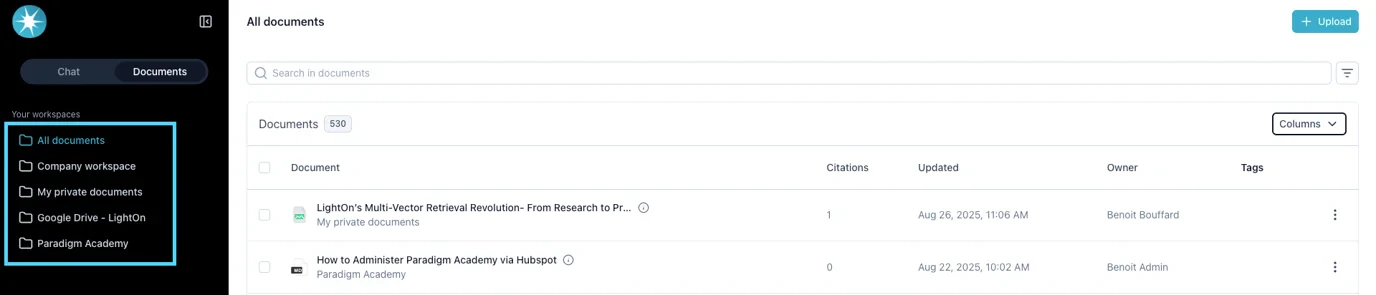
From the [Documents page](https://paradigm.lighton.ai/documents), you can view and manage all documents you have access to. This interface provides multiple ways to upload, search, filter, preview, and edit documents, depending on your permissions.
***
## 1. Uploading Documents
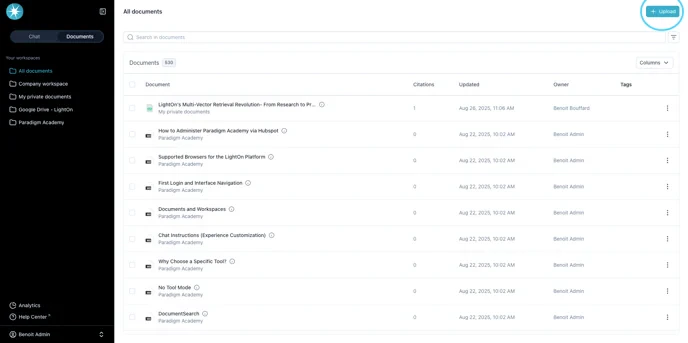
* Use the **Upload** button in the top-right corner.
 ***
## 2. Searching Documents
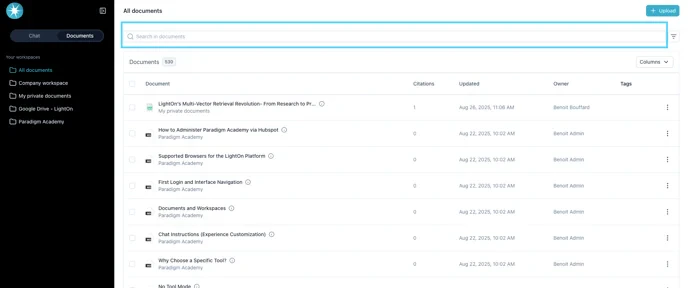
* Use the **search bar** to find documents. (Search is **based only on document names**.)
***
## 2. Searching Documents
* Use the **search bar** to find documents. (Search is **based only on document names**.)
 ***
## 3. Filtering Documents
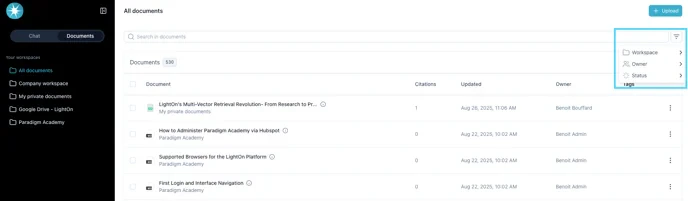
Use the **filter icon** to refine the list by:
* **Workspace** (folder)
* **Owner** (who uploaded the document)
* **Status** of the document
***
## 3. Filtering Documents
Use the **filter icon** to refine the list by:
* **Workspace** (folder)
* **Owner** (who uploaded the document)
* **Status** of the document
 ### Document Statuses
* **Pending**: Waiting to start processing (e.g., heavy upload load).
* **Parsing**: Document is being split into parts.
* **Parsing failed**: Splitting failed; document unusable.
* **Embedding**: Content is being analyzed and chunked.
* **Embedding failed**: Embedding failed; document unusable.
* **Embedded**: Document is ready to use.
* **Fail**: Generic failure; document unusable.
* **Updating**: Document is being updated (common with synced sources such as Google Drive, SharePoint, ServiceNow, Teams, etc.).
***
## 4. Customizing Columns
Click **Columns** to choose which metadata to display:
* **Citations**: Number of times the document was cited in conversations.
* **Updated**: Last update date.
* **Uploaded**: Original upload date.
* **Owner**: Who uploaded the document.
* **Tags**: Automatically generated tags (created during nightly processing).
### Document Statuses
* **Pending**: Waiting to start processing (e.g., heavy upload load).
* **Parsing**: Document is being split into parts.
* **Parsing failed**: Splitting failed; document unusable.
* **Embedding**: Content is being analyzed and chunked.
* **Embedding failed**: Embedding failed; document unusable.
* **Embedded**: Document is ready to use.
* **Fail**: Generic failure; document unusable.
* **Updating**: Document is being updated (common with synced sources such as Google Drive, SharePoint, ServiceNow, Teams, etc.).
***
## 4. Customizing Columns
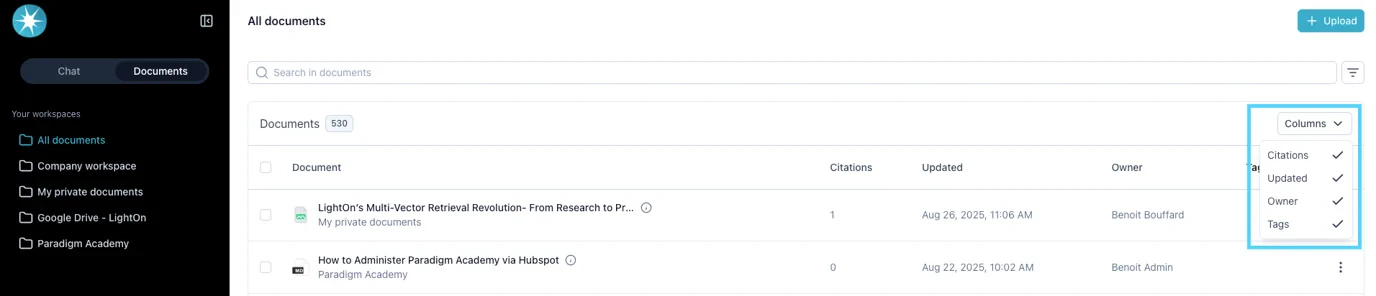
Click **Columns** to choose which metadata to display:
* **Citations**: Number of times the document was cited in conversations.
* **Updated**: Last update date.
* **Uploaded**: Original upload date.
* **Owner**: Who uploaded the document.
* **Tags**: Automatically generated tags (created during nightly processing).
 ***
## 5. Workspace Filtering
* Use the left-side menu to filter by **workspace(s)**.
**Tip:** If you filter by a workspace and then click **Upload**, the selected workspace is automatically applied.
***
## 5. Workspace Filtering
* Use the left-side menu to filter by **workspace(s)**.
**Tip:** If you filter by a workspace and then click **Upload**, the selected workspace is automatically applied.
 ***
## 6. Document Preview & Summary
* **Click a document row** to preview its content.
* Hover over the **"i" icon** next to a document to see its **summary**.
For each document, use the **three-dot menu** to:
* Preview the document
* Rename the document
* Delete the document
***
## 8. Multi-Select and Bulk Actions
* Check one or more boxes next to documents to enable bulk actions:
* **Explore selected** → Route to chat with these docs preloaded.
* **Download** → Export selected documents.
* **Delete** → Remove selected documents.
**Permissions and Limitations**
* The list of documents is limited by your **workspace access** and **user permissions**.
* If you are **not a Document Manager**, you cannot upload documents into the **Company workspace**.
* If you cannot see a workspace you should have access to, contact your **admin**.
***
## 6. Document Preview & Summary
* **Click a document row** to preview its content.
* Hover over the **"i" icon** next to a document to see its **summary**.
For each document, use the **three-dot menu** to:
* Preview the document
* Rename the document
* Delete the document
***
## 8. Multi-Select and Bulk Actions
* Check one or more boxes next to documents to enable bulk actions:
* **Explore selected** → Route to chat with these docs preloaded.
* **Download** → Export selected documents.
* **Delete** → Remove selected documents.
**Permissions and Limitations**
* The list of documents is limited by your **workspace access** and **user permissions**.
* If you are **not a Document Manager**, you cannot upload documents into the **Company workspace**.
* If you cannot see a workspace you should have access to, contact your **admin**.