> ## Documentation Index
> Fetch the complete documentation index at: https://docs.lighton.ai/llms.txt
> Use this file to discover all available pages before exploring further.
# Understanding And Using Document Tags
> This article explains how tags are managed by company admins, how they can be applied, manually or automatically to documents and where to find and use them for faster, more accurate searches.
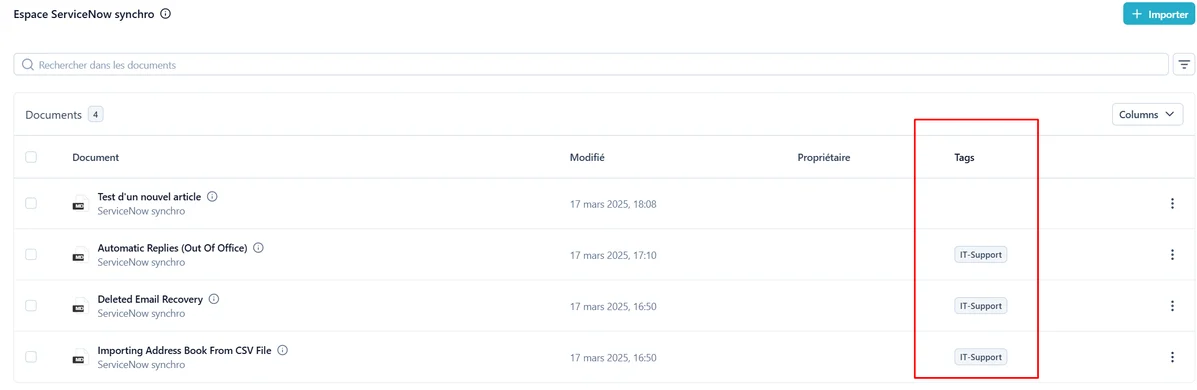 **Tags are defined by an admin, applied through the API or our auto-tagging capability, and can they be used to scope your searches on a specific set of documents.** They make your documents easier to find and will support advanced features going forward.
## How Tags Are Created and Deleted
**Company Admins** can define a list of tags or delete them for their company either
* through the admin interface in the `/admin/knowledge_graph/tag/` url.
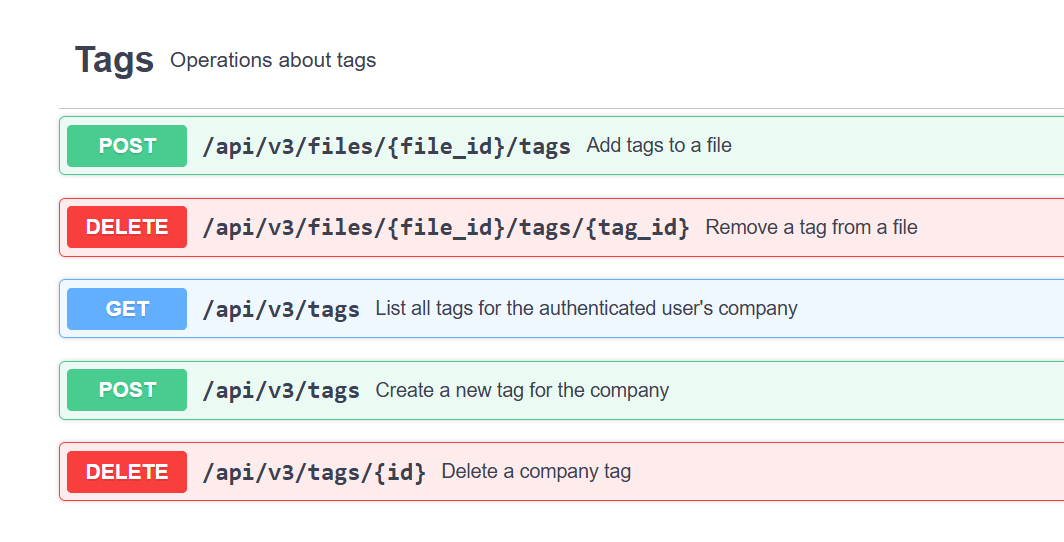
* or through the dedicated API endpoints at`api/v3/docs/#/Tags`
**Tags are defined by an admin, applied through the API or our auto-tagging capability, and can they be used to scope your searches on a specific set of documents.** They make your documents easier to find and will support advanced features going forward.
## How Tags Are Created and Deleted
**Company Admins** can define a list of tags or delete them for their company either
* through the admin interface in the `/admin/knowledge_graph/tag/` url.
* or through the dedicated API endpoints at`api/v3/docs/#/Tags`
 > * ➡️ Each tag should include a meaningfull **description** to clarify its purpose and why a document should have it (see below auto-tagging capability)
## How Tags Are Associated To Documents
There are several flexible ways of associating tags to a Document
* At API import, throught the POST [**/api/v3/files**](https://paradigm-preprod.lighton.ai/api/v3/docs/#/Files/api_v3_files_create) endpoint
* Parameter : "tags": \[], ( List of tag IDs to assign to the document on creation)
* Through the dedicated association endpoint in the API for already uploaded documents
* POST [**/api/v3/files**](https://paradigm-preprod.lighton.ai/api/v3/docs/#/Files/api_v3_files_create)**//tags**
* **Automatically** : During off-peak hours (typically at night), an automated process will try to apply, according to the tag name and description, the tags to Documents.
Note it is currently not possible to visually associate tags to documents in the UI in Paradigm.
## Launching Auto-tagging Immediately
You don't have to wait overnight for tags to be associated. If needed, you can trigger auto-tag association manually:
1. Go to the **Document Administration Page**: `/admin/embeddings/document/` url.
2. Select one or more documents.
3. From the action drop-down menu, choose **"Tag document with knowledge graph."** ✅
## Where to Find Tags
* Tags are displayed directly in the **Document List page**.
* They appear alongside each document, making it easy to identify content.
* You can also use them as filters to scope your search results on a specific set of documents.
## Why Tags Matter
* Tags can improve the **accuracy** and **speed** of document search by scoping on them
* In the future, they will also power additional features across the platform (organization, automation, recommendations, etc.).
## Using Tags to Scope Your Chat *\*
Tags are not only useful for organizing and finding documents — you can also use them to focus your chat interactions.
When starting a conversation, you can select one or more tags in the Scope / Context settings. The model will then only search and reference documents that match the selected tags. This is particularly useful when you want to target a specific topic or category across multiple workspaces.
You can also combine tag filters with workspace selection to narrow your scope even further.
For more details on scoping options, see [How to Restrict Chat to Specific Workspaces, Documents, or Tags](/en/user-guides/chat-features/workspace-chat-scope)
> * ➡️ Each tag should include a meaningfull **description** to clarify its purpose and why a document should have it (see below auto-tagging capability)
## How Tags Are Associated To Documents
There are several flexible ways of associating tags to a Document
* At API import, throught the POST [**/api/v3/files**](https://paradigm-preprod.lighton.ai/api/v3/docs/#/Files/api_v3_files_create) endpoint
* Parameter : "tags": \[], ( List of tag IDs to assign to the document on creation)
* Through the dedicated association endpoint in the API for already uploaded documents
* POST [**/api/v3/files**](https://paradigm-preprod.lighton.ai/api/v3/docs/#/Files/api_v3_files_create)**//tags**
* **Automatically** : During off-peak hours (typically at night), an automated process will try to apply, according to the tag name and description, the tags to Documents.
Note it is currently not possible to visually associate tags to documents in the UI in Paradigm.
## Launching Auto-tagging Immediately
You don't have to wait overnight for tags to be associated. If needed, you can trigger auto-tag association manually:
1. Go to the **Document Administration Page**: `/admin/embeddings/document/` url.
2. Select one or more documents.
3. From the action drop-down menu, choose **"Tag document with knowledge graph."** ✅
## Where to Find Tags
* Tags are displayed directly in the **Document List page**.
* They appear alongside each document, making it easy to identify content.
* You can also use them as filters to scope your search results on a specific set of documents.
## Why Tags Matter
* Tags can improve the **accuracy** and **speed** of document search by scoping on them
* In the future, they will also power additional features across the platform (organization, automation, recommendations, etc.).
## Using Tags to Scope Your Chat *\*
Tags are not only useful for organizing and finding documents — you can also use them to focus your chat interactions.
When starting a conversation, you can select one or more tags in the Scope / Context settings. The model will then only search and reference documents that match the selected tags. This is particularly useful when you want to target a specific topic or category across multiple workspaces.
You can also combine tag filters with workspace selection to narrow your scope even further.
For more details on scoping options, see [How to Restrict Chat to Specific Workspaces, Documents, or Tags](/en/user-guides/chat-features/workspace-chat-scope)