> ## Documentation Index
> Fetch the complete documentation index at: https://docs.lighton.ai/llms.txt
> Use this file to discover all available pages before exploring further.
# SCIM Configuration: Microsoft Entra ID
> Here are the different steps to follow in Paradigm in order to configure the automatic user provisioning in Paradigm from Microsoft Entra ID (formerly Azure Active Directory).
### Paradigm side
* Activate SCIM feature instance-wise: Put the config key `SCIM_INSTANCE_ACTIVATION` to `True`
* Have a user with the permissions to manage users in the desired company
* Create an API key linked to that user
### Microsoft side
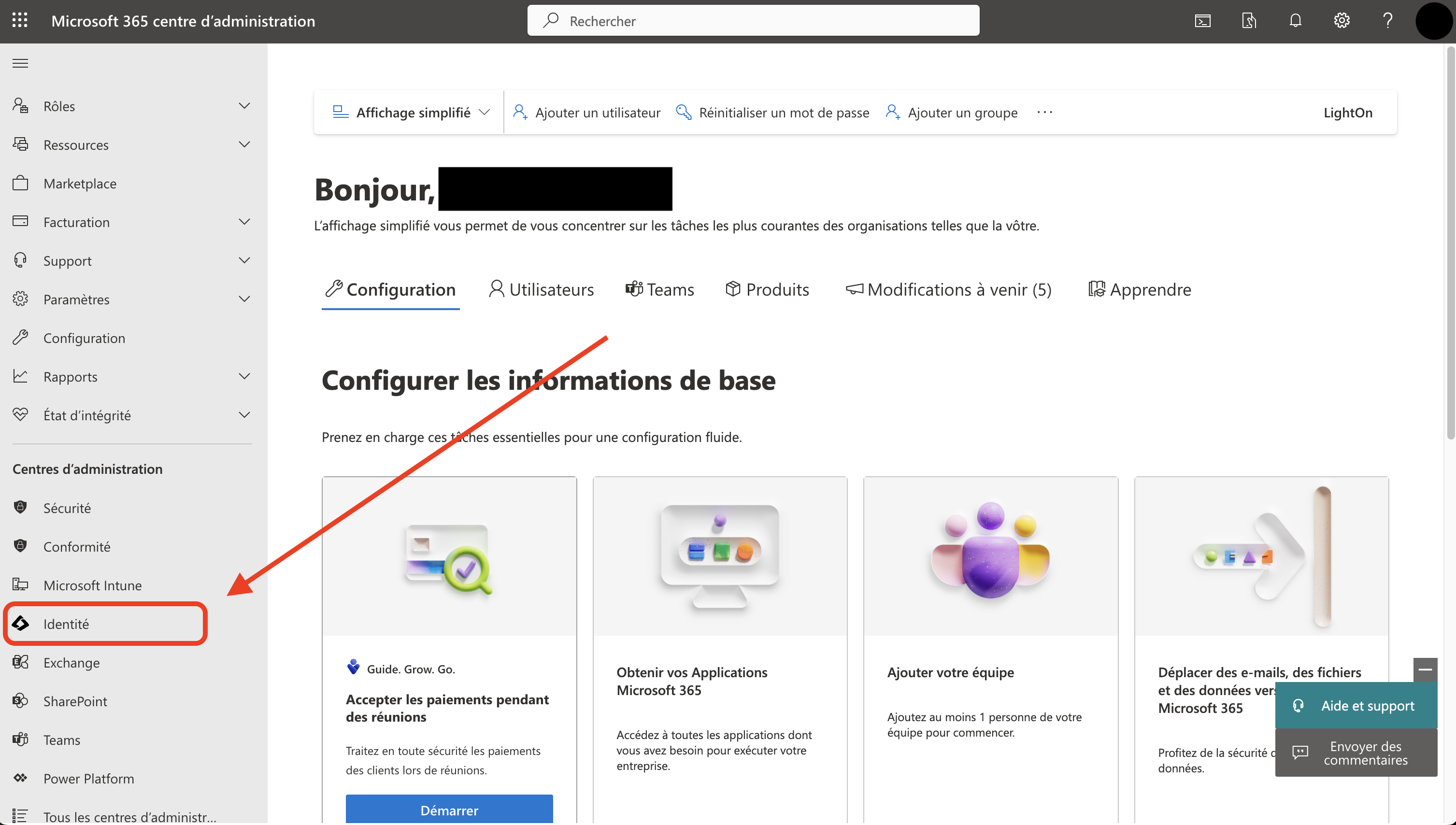
* From the Microsoft Admin interface, go to the Identity Administration area (Entra ID)
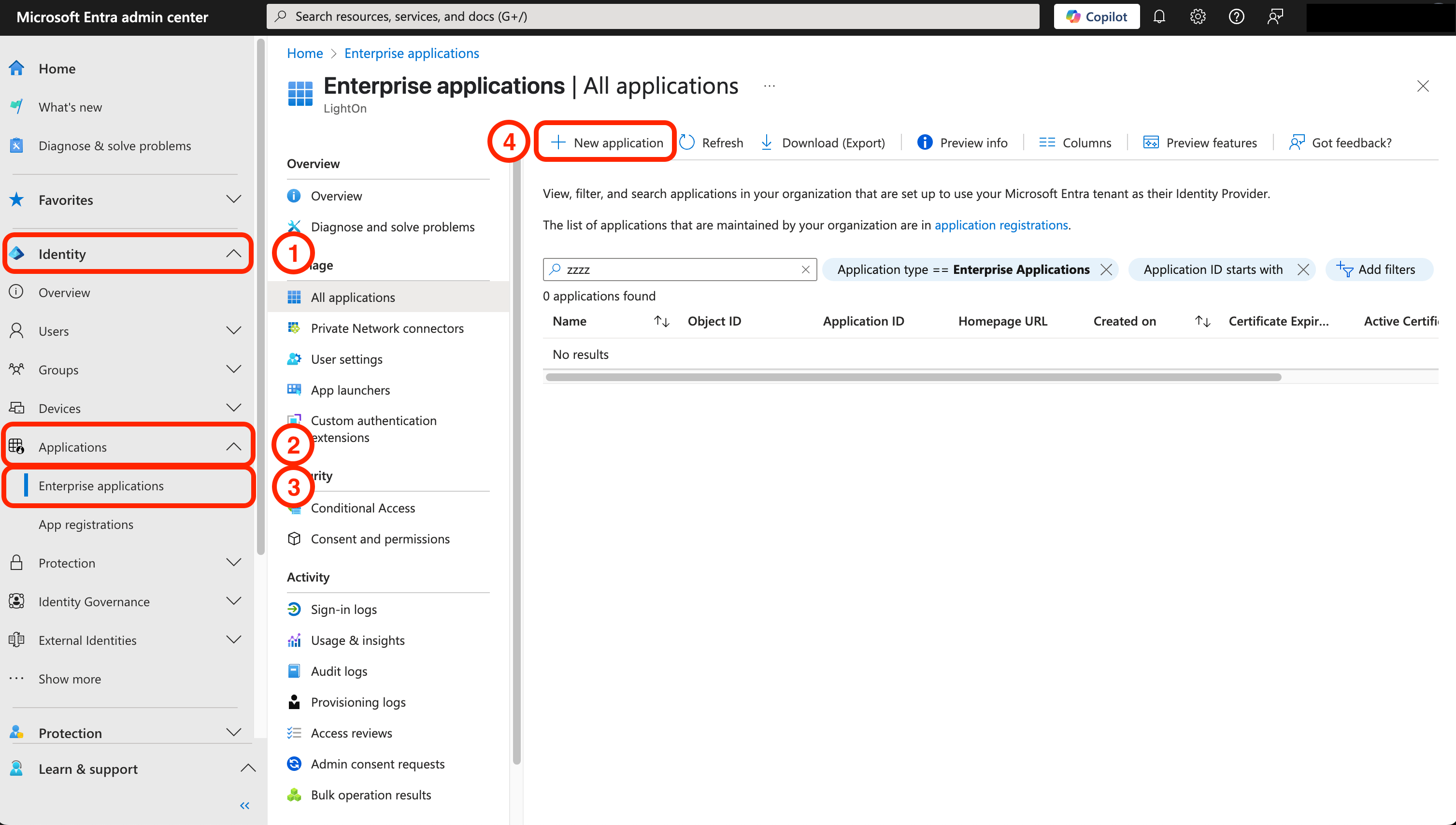
 * Create a new application in the Identity administration site
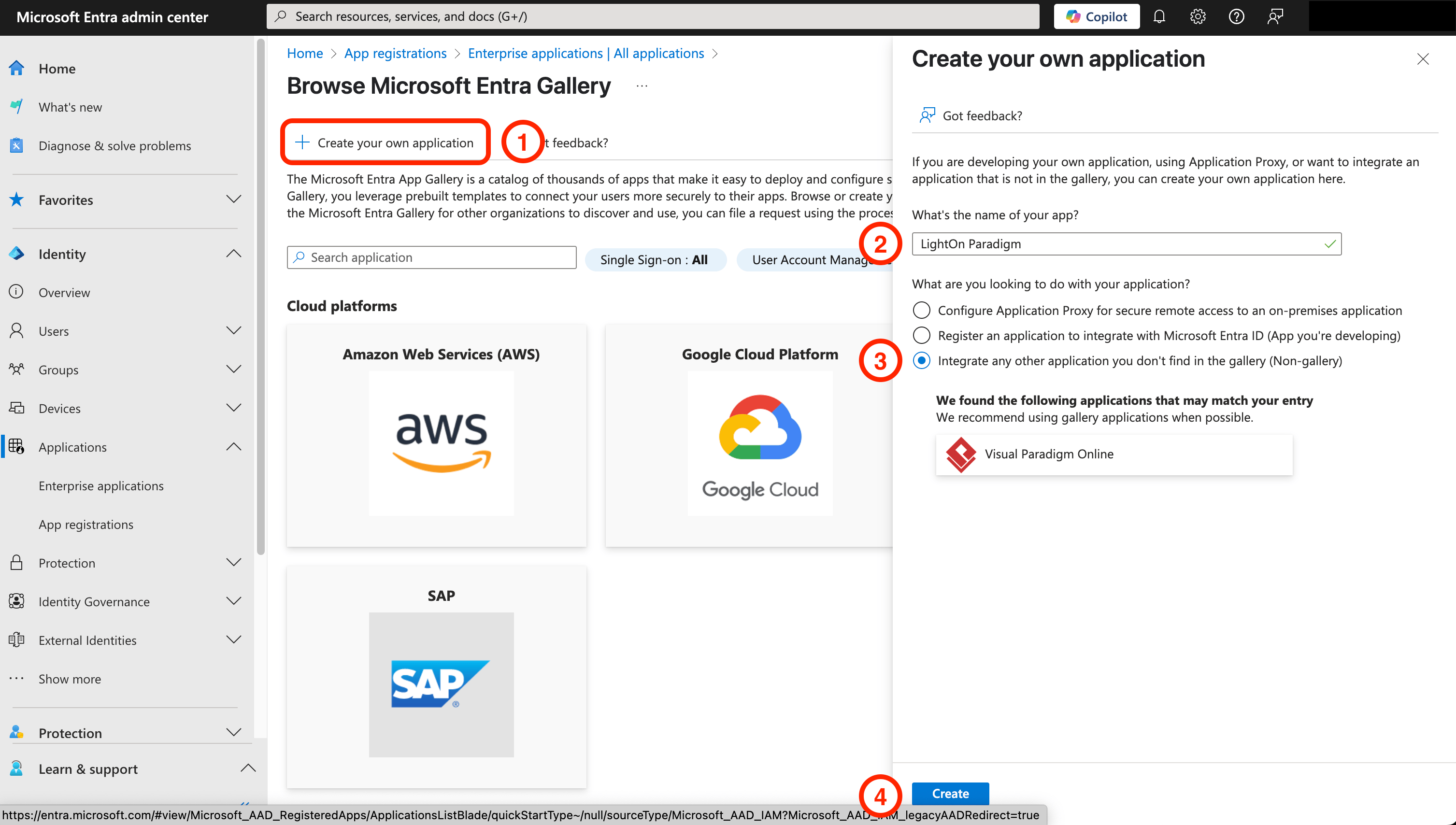
 * Select `Create your own application`, give the name you want and select the 3rd option `Integrate any other application you don't find in the gallery (Non-gallery)` and click on `Create`.
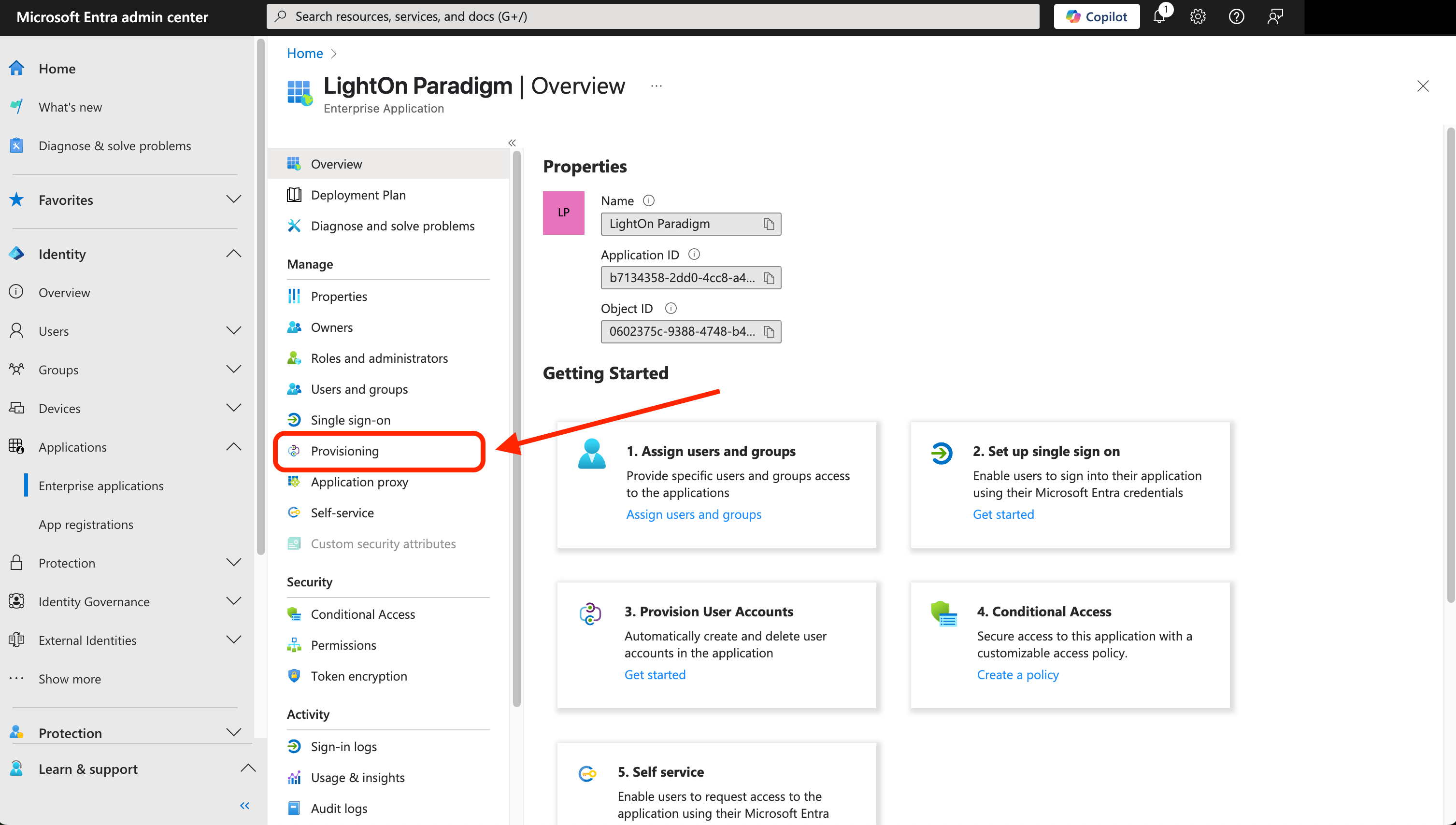
 * Once the application has been created, click on `Provisioning`
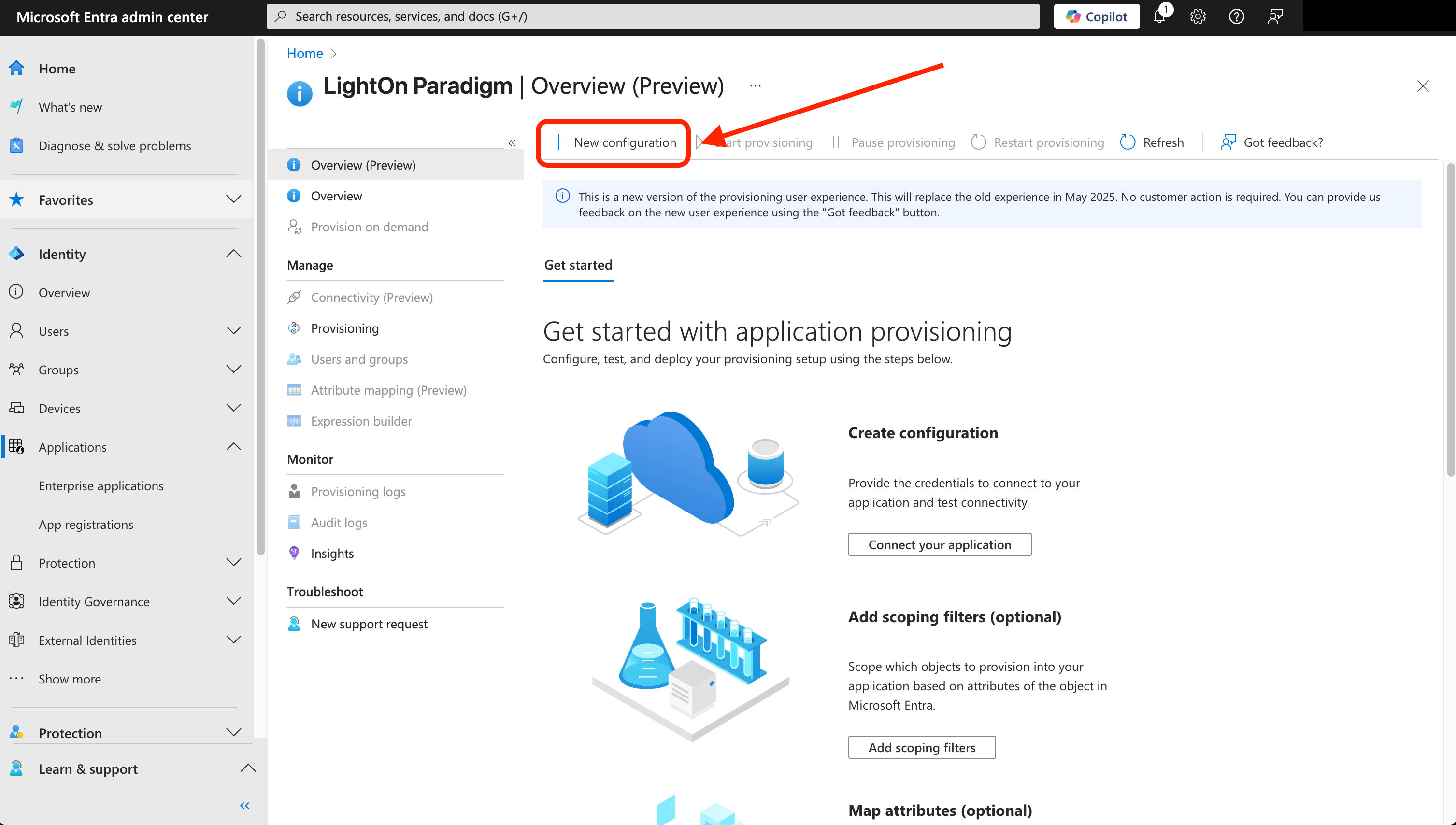
 * Click on `+ New configuration`
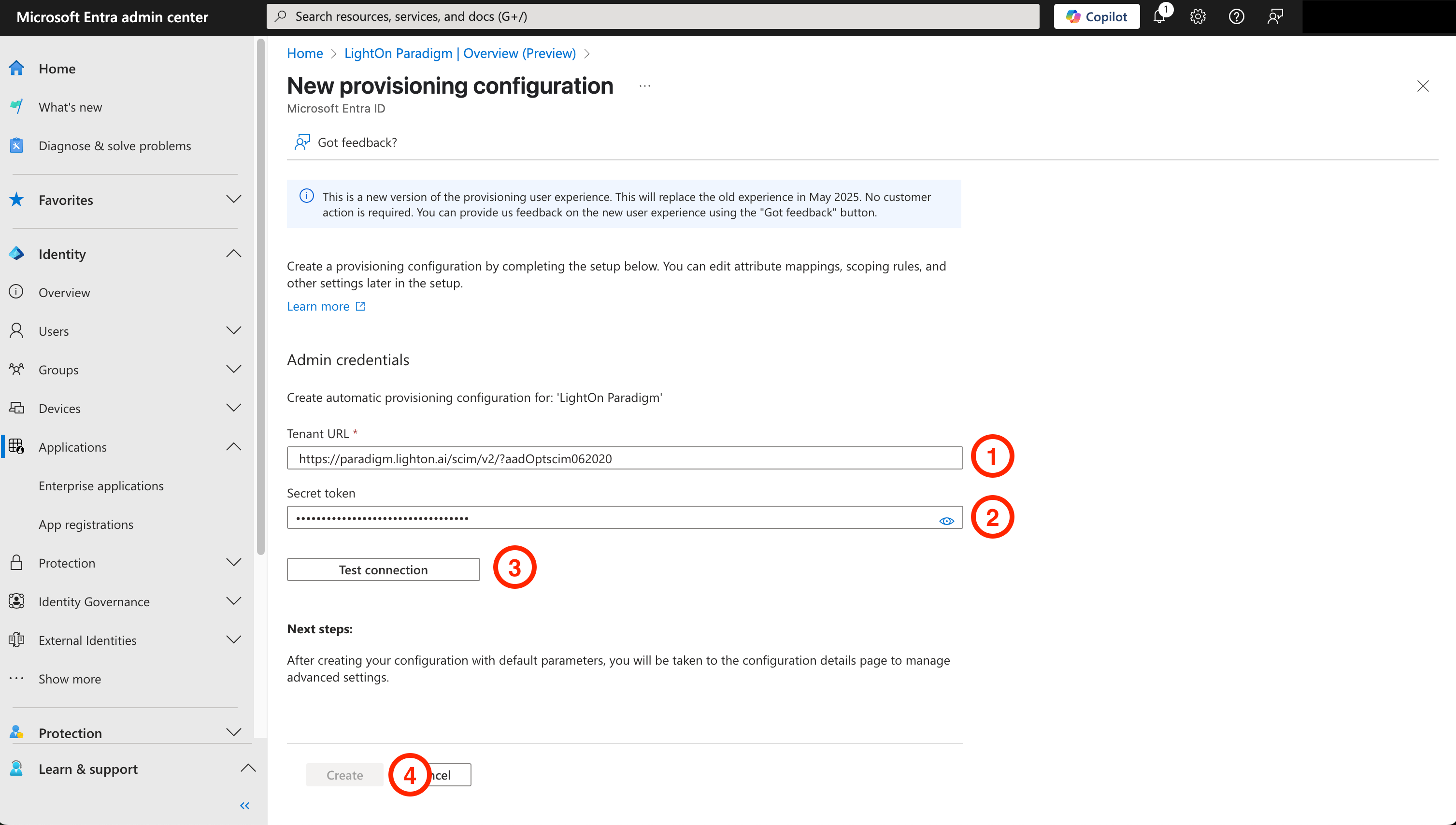
 * Configure the provisioning to use the desired Paradigm instance:
* `Tenant URL`:
It should follow the pattern
`https:///scim/v2/?aadOptscim062020`.
The `` should be replaced by `paradigm.lighton.ai` to use the LightOn SaaS solution or by the client domain name for on-premise solutions
⚠️ The `?aadOptscim062020` flag is currently necessary to fix bugs on Microsoft side. Microsoft is actively working on implementing the related behavior modifications in the default behavior.
[More information can be found here](https://learn.microsoft.com/en-us/entra/identity/app-provisioning/application-provisioning-config-problem-scim-compatibility#flags-to-alter-the-scim-behavior)
* `Secret token`: Put the created Paradigm API key in this field.
* Click on `Test connection` to verify the Paradigm instance can be reached and has the SCIM feature available / activated.
* Click on `Create` once the test is successful
* Configure the provisioning to use the desired Paradigm instance:
* `Tenant URL`:
It should follow the pattern
`https:///scim/v2/?aadOptscim062020`.
The `` should be replaced by `paradigm.lighton.ai` to use the LightOn SaaS solution or by the client domain name for on-premise solutions
⚠️ The `?aadOptscim062020` flag is currently necessary to fix bugs on Microsoft side. Microsoft is actively working on implementing the related behavior modifications in the default behavior.
[More information can be found here](https://learn.microsoft.com/en-us/entra/identity/app-provisioning/application-provisioning-config-problem-scim-compatibility#flags-to-alter-the-scim-behavior)
* `Secret token`: Put the created Paradigm API key in this field.
* Click on `Test connection` to verify the Paradigm instance can be reached and has the SCIM feature available / activated.
* Click on `Create` once the test is successful
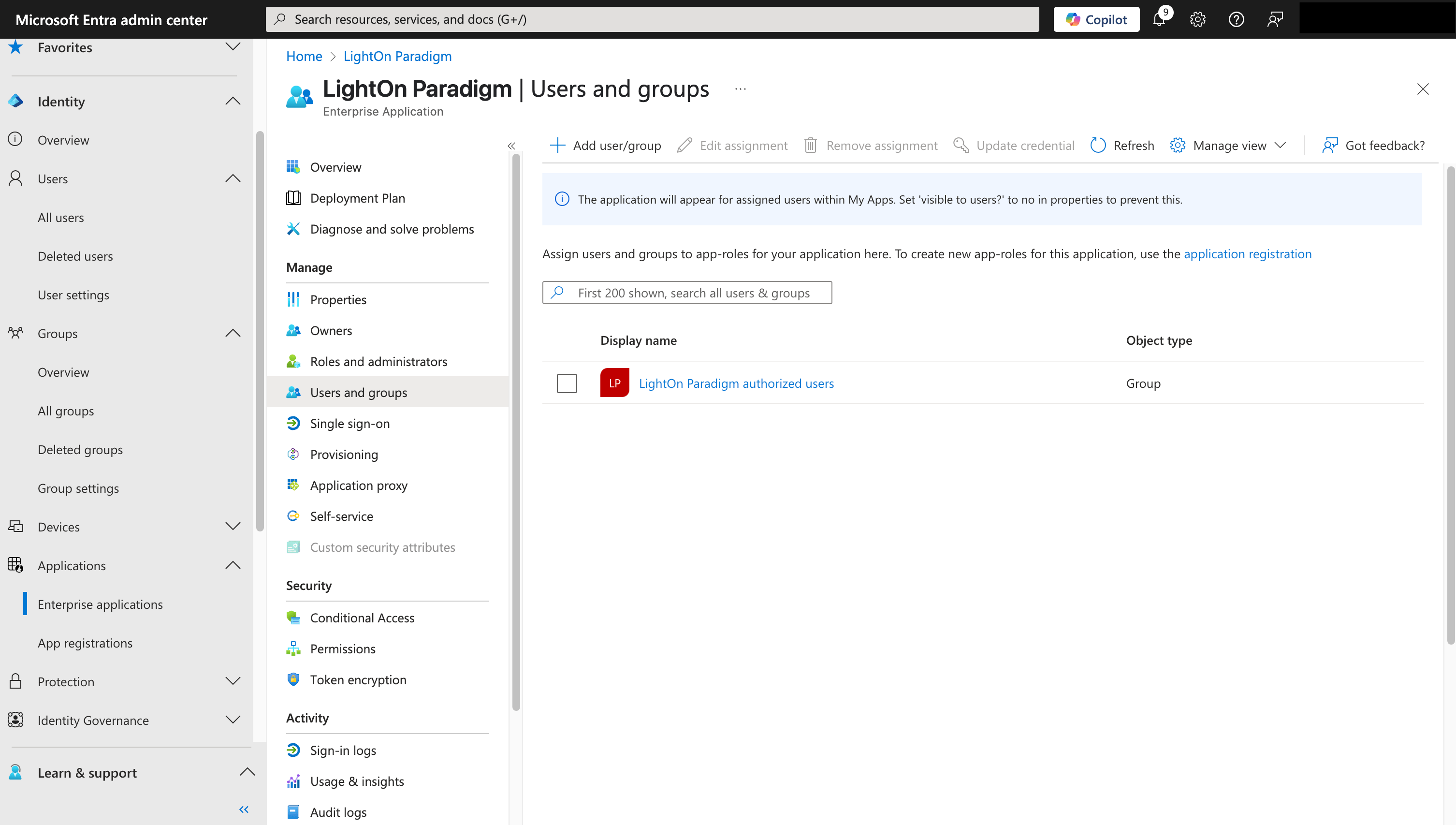
 * Go to the `Users and groups` area to assign users or a group of users to the application
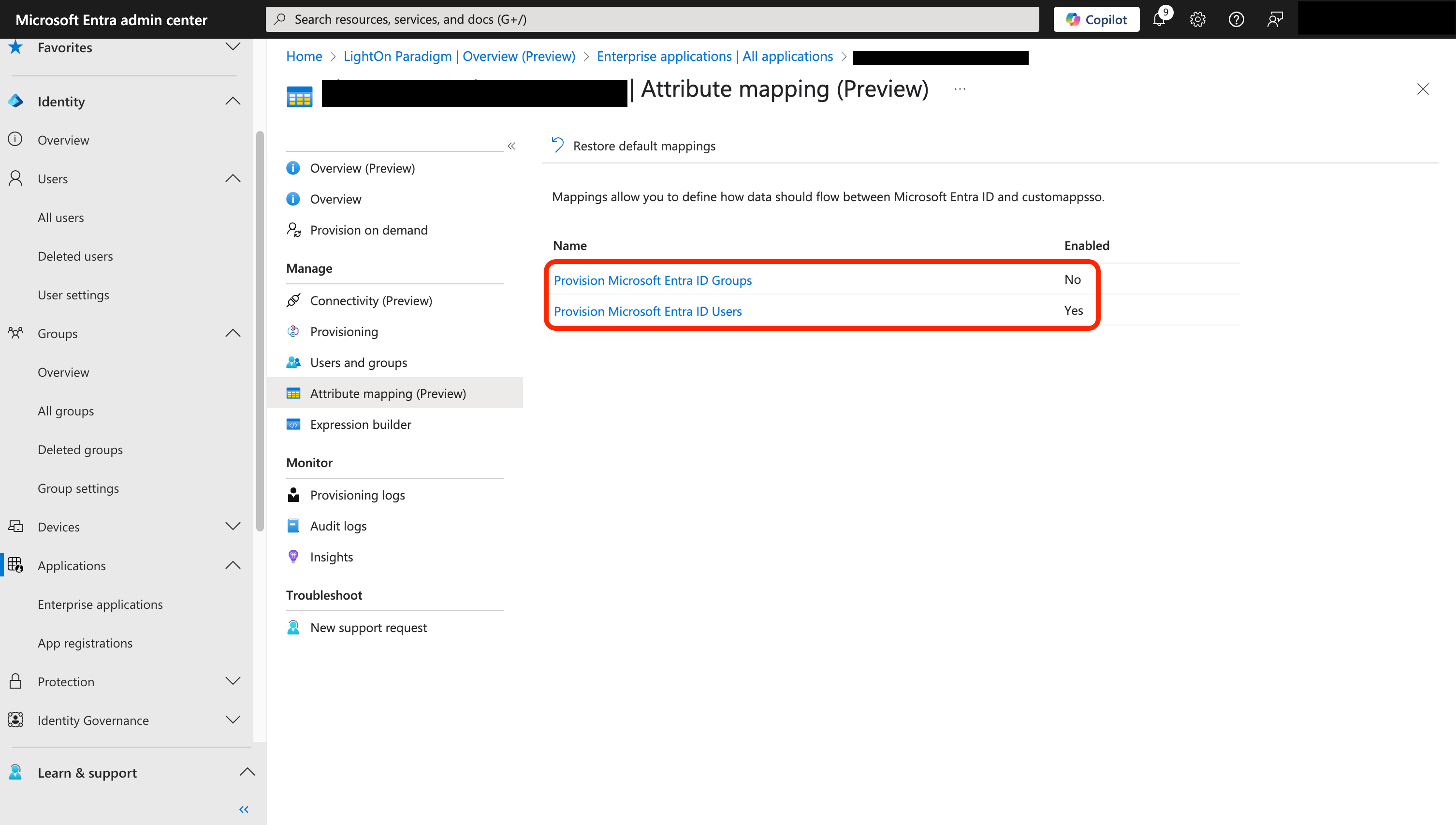
 * Go to the `Attribute mapping` area and set the `Provision Microsoft Entra ID Groups` to `No` (disabled)
💡 The mapping of groups is currently not supported in Paradigm. The provisioning can only be used to manage users not the groups they are part of, so in our case the `LightOn Paradigm authorized users` group will not be created in Paradigm. The request will be refused if Microsoft Entra ID tries to.
* Go to the `Attribute mapping` area and set the `Provision Microsoft Entra ID Groups` to `No` (disabled)
💡 The mapping of groups is currently not supported in Paradigm. The provisioning can only be used to manage users not the groups they are part of, so in our case the `LightOn Paradigm authorized users` group will not be created in Paradigm. The request will be refused if Microsoft Entra ID tries to.
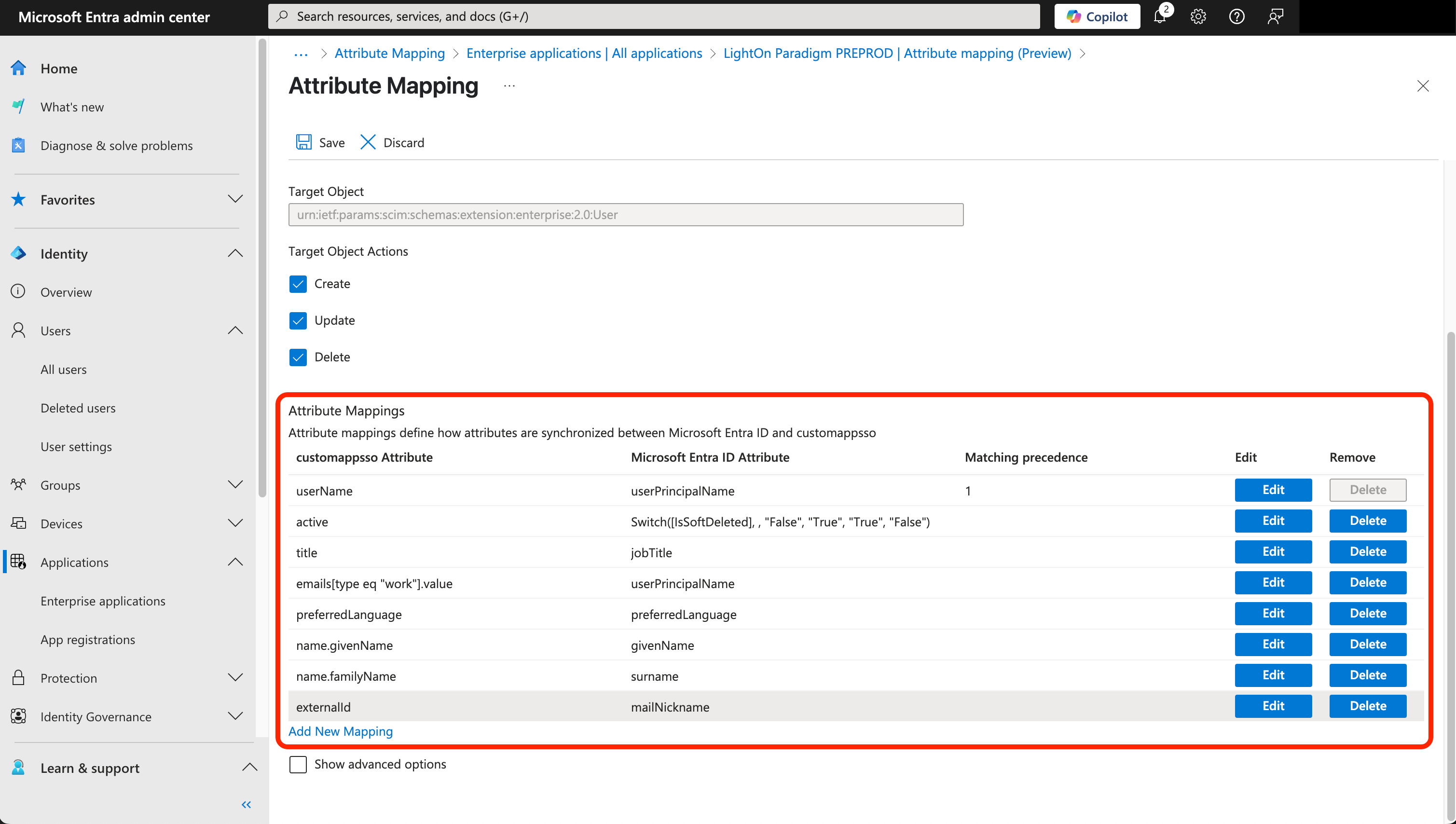
 * In the `Attribute mapping` area, check what is used for the `emails[type eq "work"].value` attribute, we advise to use the `userPrincipalName` to avoid forgetting to fill the `mail` microsoft field when creating a user (used by default for SCIM in Entra ID)
You can find the suggested attributes configuration for users in the image below
* In the `Attribute mapping` area, check what is used for the `emails[type eq "work"].value` attribute, we advise to use the `userPrincipalName` to avoid forgetting to fill the `mail` microsoft field when creating a user (used by default for SCIM in Entra ID)
You can find the suggested attributes configuration for users in the image below
 * Go back to the `Overview` and click on `Start provisioning`
### Expected behavior with this configuration
Here is a table summarizing the expected behaviors in Paradigm following an action in Microsoft Entra ID:
| Microsoft Entra ID action | Paradigm behavior |
| -------------------------------------------------------------------------- | ------------------------------------------------------------------------------------------------------------ |
| **create** a new user and assign him/her to the group assigned to Paradigm | creates the related account in Paradigm |
| **modify** an information about the user in Microsoft Entra ID | the change will be forwarded to Paradigm if it touches to an attribute which is used by Paradigm |
| **delete** a user from the Entra ID administration panel | it will deactivate the user in Paradigm as well as modifying the username and email to be restored if needed |
| **permanently delete** a user from the Entra ID administration panel | the user will be deactivated and anonymized in Paradigm |
* Go back to the `Overview` and click on `Start provisioning`
### Expected behavior with this configuration
Here is a table summarizing the expected behaviors in Paradigm following an action in Microsoft Entra ID:
| Microsoft Entra ID action | Paradigm behavior |
| -------------------------------------------------------------------------- | ------------------------------------------------------------------------------------------------------------ |
| **create** a new user and assign him/her to the group assigned to Paradigm | creates the related account in Paradigm |
| **modify** an information about the user in Microsoft Entra ID | the change will be forwarded to Paradigm if it touches to an attribute which is used by Paradigm |
| **delete** a user from the Entra ID administration panel | it will deactivate the user in Paradigm as well as modifying the username and email to be restored if needed |
| **permanently delete** a user from the Entra ID administration panel | the user will be deactivated and anonymized in Paradigm |